How To Connect To A Review Source
To begin syncing reviews, the initial step is connecting to your preferred review source. This guide will walk you through the process:
Setup Guide:
Log in to your account.
Navigate to "Connect" in the top navigation menu.
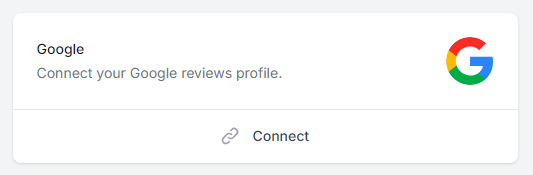
Search for the review source you wish to connect to.
Click on "Connect."
Follow the prompts on the screen to complete the connection process.
Once connected, reviews will begin syncing from the source. The syncing process may take a few minutes depending on the number of reviews.
How to disconnect from a review source
If you would like to disconnect from a review source follow the below steps:
Log in to your account.
Navigate to "Connect" in the top navigation menu.
Search for the review source you wish to disconnect from.
Click on "Disconnect."
Confirm the Disconnection
What are custom review sources?
Custom review sources allow you to import reviews from any source that is not currently supported. This could be a review site that we don't currently support or a custom source such as a CSV file.
How to import reviews from a custom source
To import reviews from a custom source follow the below steps:
Log in to your account.
Navigate to "connect" in the top navigation menu.
Click on custom sources in the left sidebar
Enter the Source Name (required)
Enter the domain of the source (required)
Optionally enter the URL we should use when a client attempts to leave a review
Upload a logo for the source (required)
Click create
Once created go to the reviews by clicking on the link in the top navigation
Click the add reviews button
Click import reviews from the dropdown
Select your CSV file
Click import
Now map the columns in your CSV file to the correct fields
Click import
Great! Your reviews will now be imported